

Publish SPF, DKIM, and DMARC records for your sending domain, then verify each one before you tighten policy. Start by listing every tool that sends mail on your behalf, publish the matching DNS records, and send a real test message to confirm the headers show a pass. This covers sending and authentication, not hosted inboxes, and it's the difference between newsletters that land in the inbox and ones that vanish into spam.
TL;DR:
- Proper publication and verification of SPF, DKIM, and DMARC records are essential to ensure newsletters land in inboxes rather than spam.
- SPF records should include all sending services and be published at the domain's apex, while DKIM must be enabled with 2048-bit keys for stronger security.
- DMARC requires alignment of SPF or DKIM with the visible From address, with strict or relaxed modes depending on your setup, to pass fully.
- Inventory all sending sources, publish records in proper order, and verify headers and reports before moving from monitoring to enforcement.
- Using CNAME records for DKIM simplifies key rotation, and a well-chosen selector name helps manage multiple senders without conflicts.
Table of Contents
- What Custom Domain Email Actually Means Here
- What SPF, DKIM, and DMARC Do and Where They Live in DNS
- Step-by-Step Checklist for Publishing and Verifying Your Records
- Why DKIM Alignment and SPF Lookup Limits Trip Up Creators
- How to Verify Everything Is Actually Working
- Using CNAME Records for Third-Party Email Services
- Choosing DKIM Selector Names You Won't Regret Later
- Setting Up Return-Path and Bounce Handling Correctly
- Do You Need MX Records for Sending Domain Verification?
- Aligning Your From Address for a Full DMARC Pass
- How Long Should You Wait Before Testing?
- What Actually Matters When You're Small and Short on Time
- Send Newsletters From Your Own Domain Without Juggling Five Tools
- Sources
What Custom Domain Email Actually Means Here
A custom domain email, in the context that matters for newsletters and site notifications, means your messages carry your domain in the From address and pass authentication checks tied to that domain. It does not involve running full inboxes like you@yourdomain.com through a mailbox provider. That's a separate project entirely.
For creators sending newsletters or automated site emails, this distinction determines whether Gmail and Outlook trust your mail. A branded sending domain without proper SPF, DKIM, and DMARC records looks, to spam filters, indistinguishable from a scammer spoofing your name.
Before you touch DNS, assign these roles:
- Domain owner: publishes and edits DNS records (or approves changes a platform makes on your behalf).
- Sender inventory keeper: tracks every service that sends mail as you (newsletter platform, invoicing tool, form notifications).
- Verifier: sends test messages and checks headers after every change.
- Monitor: reviews DMARC aggregate reports weekly once reporting is live.
One person can wear all four hats on a small team, but skipping the inventory step is the most common reason authentication breaks later.
What SPF, DKIM, and DMARC Do and Where They Live in DNS
Each record answers a different question, and all three work together.
SPF (Sender Policy Framework) answers "which servers are allowed to send mail for this domain?" It's a single TXT record published at your domain's apex (example.com, not a subdomain), formatted like v=spf1 include:_spf.yoursender.com ~all. List every service that sends on your behalf inside that one record. Google's authentication guidance recommends every sender configure SPF or DKIM at minimum, with bulk senders using both plus DMARC.
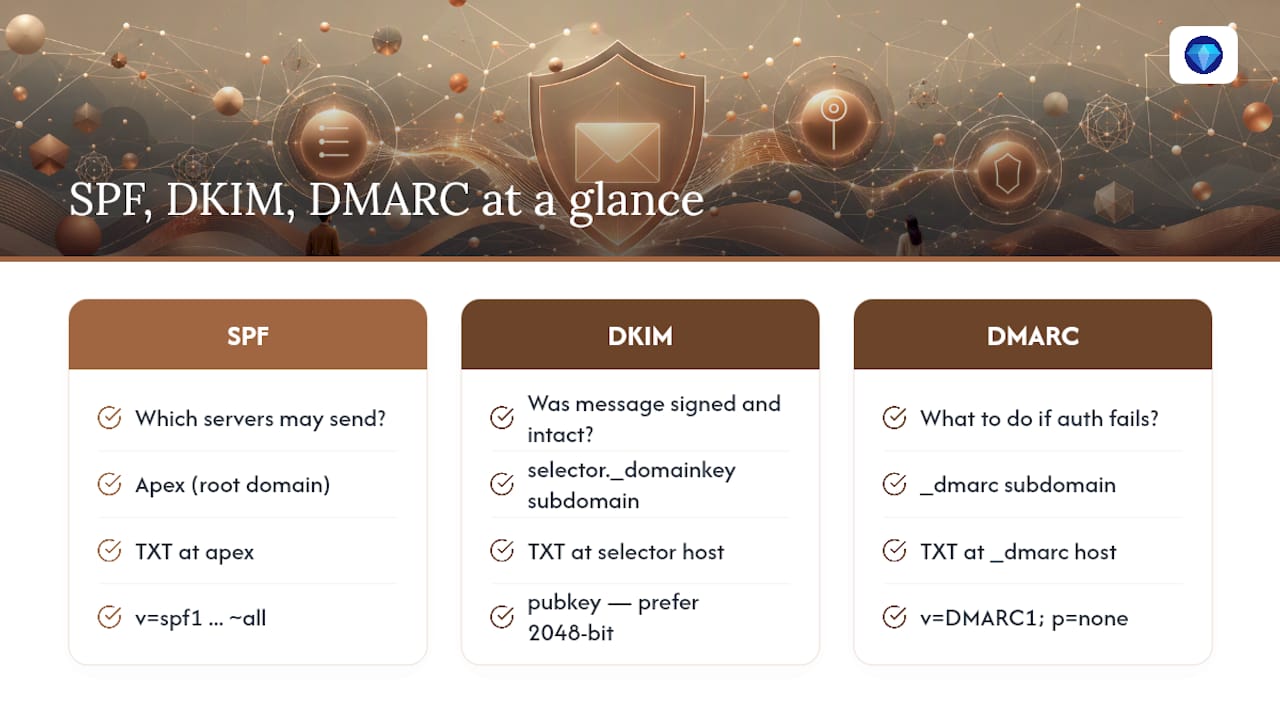
DKIM (DomainKeys Identified Mail) answers "was this message actually sent by who it claims, and untouched in transit?" It works by attaching a cryptographic signature to outgoing mail, verified against a public key you publish at a hostname like selector._domainkey.example.com. Your newsletter or website platform has to enable DKIM signing on its end. Both Microsoft and Google recommend 2048-bit keys over the older 1024-bit standard for stronger protection.
DMARC answers "what should a receiving server do if SPF or DKIM fails?" You publish it as a TXT record at _dmarc.example.com, starting with something like v=DMARC1; p=none; rua=mailto:reports@example.com. The p=none setting means "just tell me what's happening, don't block anything yet."
By the numbers: Valimail's breakdown of the three protocols notes that DMARC only works when either SPF or DKIM is "aligned," meaning the domain in the signature or sending record matches the domain visible in your From header. A message can pass SPF and DKIM individually and still fail DMARC if alignment is off.
That alignment requirement is the part almost everyone misses on the first attempt. Your newsletter platform might send mail through infrastructure that passes SPF and even signs with DKIM, but if the DKIM signature says d=sendgrid.net while your visible From address says you@yourdomain.com, DMARC sees a mismatch and treats it as a failure.
Step-by-Step Checklist for Publishing and Verifying Your Records
Work through this in order. Skipping ahead to enforcement before you've verified passes is the fastest way to lose real subscriber mail.
- Inventory every sender. List each service sending mail as your domain: newsletter platform, contact forms, invoicing, CRM. Note the envelope-from address each uses versus the visible From header your subscribers see.
- Publish one merged SPF record at the apex. Combine all sender includes into a single TXT record with
~all(soft fail) rather than-allwhile you're still testing. - Enable DKIM signing for each sender and publish the selector record each one gives you. Confirm 2048-bit keys where the provider offers a choice.
- Publish DMARC at
p=nonewith arua=address for aggregate reports. Let this run for at least a week before changing anything. - Send test messages to a Gmail and an Outlook address. In Gmail, open the message and choose "Show original" to view the full headers. Look for
spf=pass,dkim=pass, anddmarc=passin the Authentication-Results line. - Check your DMARC reports after several days. Confirm every legitimate sender in your inventory shows a pass rate at or near 100 percent before you touch the policy again.
- Move to
p=quarantine, then eventuallyp=reject, only after reports confirm your real senders are clean.
Pro Tip: Keep the raw Authentication-Results header text from your first passing test message in a notes file. When something breaks six months from now after a platform migration, that saved header is your fastest way to spot exactly what changed.
This sequence mirrors what operator-level setup walkthroughs recommend: inventory first, publish second, verify third, enforce last. Reversing that order is how creators accidentally block their own newsletter mid-send.
Why DKIM Alignment and SPF Lookup Limits Trip Up Creators
Most authentication failures trace back to one of four repeat offenders.
DKIM alignment mismatches happen when your email service provider signs mail with its own domain instead of yours. Check the d= value in the DKIM-Signature header against your visible From domain. If they don't match, ask your provider whether they support custom DKIM signing under your domain, sometimes called a "branded" or "custom" signing option.
SPF lookup limits cap out at 10 DNS lookups per check. Stack too many include: statements from old providers you no longer use, and SPF simply stops evaluating and fails. Hunter's troubleshooting guide flags multiple competing SPF records at the same hostname as an equally common mistake. DNS only allows one SPF TXT record per domain; merge everything into it.
- Audit your SPF includes yearly and drop unused senders.
- Never publish two separate
v=spf1records at the same hostname. - Double check selector names against exactly what your provider issued.
Forwarding breaks SPF almost every time, because the forwarding server isn't on your authorized sender list. Cloudflare's explainer on the three protocols notes that DKIM survives forwarding far more reliably, since the signature travels with the message body rather than depending on the sending IP.
Pro Tip: If subscribers on corporate email forwarding rules report missing newsletters, check whether your DMARC policy leans too hard on SPF. Relying on DKIM alignment as a fallback path saves more forwarded mail than tightening SPF ever will.
How to Verify Everything Is Actually Working
Verification happens in three layers, and skipping any one of them is how creators end up "fixing" a record that was never broken.
Layer one: confirm the DNS records exist and resolve correctly. A quick lookup tool shows you exactly what's published, catching typos before they cost you deliverability.
Layer two: inspect a real sent message's headers. In Gmail, "Show original" reveals a line like spf=pass smtp.mailfrom=yourdomain.com; dkim=pass header.d=yourdomain.com; dmarc=pass. All three need to say pass, not just one or two.
Layer three: read your DMARC aggregate reports. These arrive as XML files to the address in your rua= field, and they show every server claiming to send mail as your domain, along with pass and fail counts. Suped's verification guidance recommends running this three-layer check rather than trusting a single tool's snapshot, since DNS lookups alone can't tell you what a real inbox provider actually saw.
| Tool | What it checks | Best for |
|---|---|---|
| MXToolbox | SPF, DKIM, DMARC record syntax | Catching DNS typos before sending |
| mail-tester.com | Full spam-score breakdown on a real send | Pre-launch deliverability check |
| Google Postmaster Tools | Domain reputation and spam rate over time | Ongoing Gmail-specific monitoring |
| DMARC report parser (many free options) | Aggregate pass/fail by sending source | Deciding when to tighten policy |
Give reports at least a full week before drawing conclusions. Traffic volume varies day to day, and a single day's data can hide a sender that only sends on Mondays.
Using CNAME Records for Third-Party Email Services
Many newsletter and marketing platforms ask you to add a CNAME record instead of a plain TXT record, especially for DKIM. A CNAME points one hostname to another, letting the provider manage the actual key content on their end while you just point your DNS at their system.
This matters because it means you don't manually copy long DKIM key strings into your DNS panel, where a single dropped character breaks the signature. Instead, your provider gives you something like em1234._domainkey.example.com pointing via CNAME to their infrastructure, and they rotate the underlying key without asking you to touch DNS again.
The tradeoff: you're trusting the provider to manage that endpoint correctly, and if they ever go offline or get acquired, that CNAME can go stale without warning. Check periodically that CNAME targets still resolve, particularly after any platform migration.
Some services also use CNAME for domain verification unrelated to DKIM, confirming you actually control the domain before they let you send from it. That's a separate step from authentication but often bundled into the same setup screen, so read each instruction carefully rather than assuming every DNS entry a provider requests serves the same purpose.
If your newsletter platform gives you a choice between a raw TXT record and a CNAME for DKIM, the CNAME option is usually easier to maintain long term, since key rotation happens on their side without any action from you.
Choosing DKIM Selector Names You Won't Regret Later
A DKIM selector is the label in front of ._domainkey.example.com that tells receiving servers which public key to check. Most providers assign one automatically, something like s1._domainkey.example.com or a string tied to your account ID, and in most cases you should simply use whatever they issue rather than inventing your own.
Where selector choice matters is when you're running multiple senders or platforms simultaneously. If your newsletter platform uses news1._domainkey and your invoicing tool uses bill1._domainkey, you can run both without conflict, because each selector points to a distinct key. Trouble starts when two services try to claim the same selector name, overwriting each other's public key in DNS.
A practical naming pattern for anyone managing selectors manually: include the sending purpose and a version number, like newsletter2026._domainkey or transactional01._domainkey. The version number matters more than it sounds. When you eventually rotate keys for security, you publish the new key under a new selector, confirm it works, and only then remove the old one. Reusing the same selector name for a key rotation means a short window where old and new keys collide.
Keep a simple record of which selector belongs to which service and when it was issued. It sounds like overkill until you're troubleshooting a DKIM failure eight months after setup and can't remember which of three selectors belongs to which sending tool.
Setting Up Return-Path and Bounce Handling Correctly
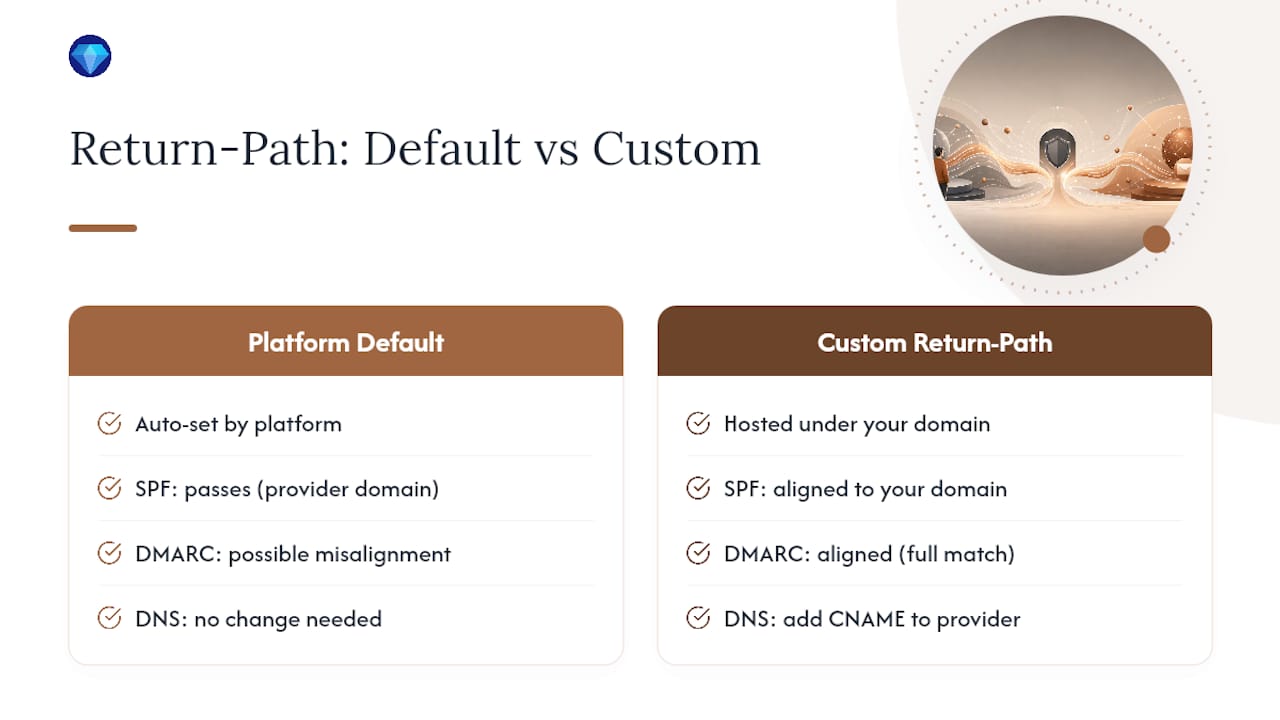
Your Return-Path, also called the envelope-from or bounce address, is where bounce notifications go when a message can't be delivered. It's often invisible to subscribers but critical to SPF, since SPF checks the domain in the Return-Path, not the visible From header.
Most newsletter and website platforms set this automatically to something like bounce.yourplatform.com unless you configure a custom one. That default usually works fine for SPF, since the platform's own domain is already authorized in their SPF setup. The catch: if the Return-Path domain differs from your visible From domain and doesn't align under DMARC's relaxed alignment mode, you can still see DMARC failures even though SPF technically passes.
For full alignment, ask your platform whether they support a custom Return-Path under your own domain, often something like bounce.yourdomain.com. This requires its own DNS entry, typically a CNAME pointing back to the provider's bounce-handling infrastructure. Once that's in place, both your Return-Path and your visible From address share your domain, which satisfies SPF alignment cleanly instead of relying on DMARC's relaxed matching to bridge the gap.
Bounce handling itself matters beyond authentication too. A properly configured Return-Path means bounced addresses get flagged and removed from future sends automatically, protecting your sender reputation. Letting bounces pile up unprocessed is one of the quieter ways creators tank their own deliverability over time, independent of anything SPF or DKIM catch.
Do You Need MX Records for Sending Domain Verification?
MX records tell the internet where to deliver incoming mail for a domain. For a pure sending setup, where you're only sending newsletters and site notifications and not hosting inboxes, you typically don't need to change your MX records at all.
Where confusion creeps in: some platforms ask you to add a specific MX record during domain verification, not to receive mail, but to prove domain ownership or to catch bounce and complaint replies. Read the exact instructions your platform gives before assuming any MX request means you're setting up a full mailbox.
If you already have MX records pointing to an existing mailbox provider for your regular business email, leave those alone. Adding a sending platform's SPF, DKIM, and DMARC records doesn't require touching MX at all, since those are separate record types serving separate functions. The one exception is if a sending platform explicitly requires a subdomain dedicated to their service, like mail.yourdomain.com, in which case that subdomain might carry its own MX setup distinct from your main domain's inbox.
When in doubt, check whether the instruction is filed under "sending setup" or "receiving setup" in your platform's documentation. If it's genuinely about sending newsletters or automated notifications, an MX change is almost never the answer, and adding one unnecessarily risks interfering with mail you're already receiving elsewhere.
Aligning Your From Address for a Full DMARC Pass
DMARC doesn't just check whether SPF and DKIM individually pass. It checks whether the domain those checks used matches the domain in your visible From header, a requirement called alignment.
Under strict alignment, the domains have to match exactly. Under relaxed alignment, which is the default for most DMARC setups and the mode most platforms assume, a subdomain match counts too, so news.yourdomain.com aligns fine with yourdomain.com.
To get a full DMARC pass, aim for both SPF and DKIM alignment where possible, though DMARC only requires one of the two to align for an overall pass. In practice, DKIM alignment tends to be more reliable, since it survives forwarding and doesn't depend on the sending server's IP address. If your platform offers custom DKIM signing under your own domain, that single setting often does more for DMARC pass rates than anything else you'll configure.
Check alignment directly by pulling up a sent message's headers and comparing three values: the From domain, the d= value in the DKIM signature, and the domain SPF checked. When all three point to the same root domain, or a subdomain of it under relaxed mode, you've got full alignment. When your newsletter platform signs with its own infrastructure domain instead of yours, that's the mismatch to raise with their support team, since Microsoft's authentication guidance treats custom domain alignment as the fix for the majority of DMARC failures creators encounter.
How Long Should You Wait Before Testing?
DNS changes don't take effect everywhere instantly. Most updates propagate within a few hours, but full global propagation can take up to 48 hours in rare cases, especially for domains with long TTL (time to live) values set on existing records.
A safe practical rule: wait at least four to six hours after publishing SPF, DKIM, or DMARC changes before running your first verification test. For DMARC specifically, aggregate reports don't even start arriving until receiving servers have processed a batch of your mail against the new policy, which typically means waiting a full 24 hours minimum before your first report shows up, and a full week before the report data is reliable enough to act on.
If you lower your DNS TTL to something short, like 300 seconds, before making a change, you can shrink that propagation window considerably for future edits. That's a smart move if you know you'll be iterating on records over several days rather than setting them once and walking away.
Testing too early is the most common reason creators think their setup failed when it actually just hadn't propagated yet. If your first test shows a fail, wait a few more hours and try again before assuming the record itself is wrong.
What Actually Matters When You're Small and Short on Time
Most creators don't need enterprise-grade email infrastructure. They need their newsletter to land in the inbox and their contact form notifications to not vanish. Start there, not with a complete authentication overhaul across every tool you've ever connected to your domain.
Build your sender inventory first, even if it feels tedious. Skipping it means discovering three months later that your invoicing tool has been failing DKIM the whole time because nobody added it to the SPF record. Separating your newsletter traffic onto its own subdomain, something like news.yourdomain.com, keeps your sending reputation contained. If that subdomain has a rough week, it doesn't drag down your main domain's mail alongside it.
Roll DMARC out slowly. p=none for at least a week, ideally two, before you even consider quarantine. The reports will tell you things your assumptions won't, usually a forgotten sender you didn't know existed.
— Jed
Send Newsletters From Your Own Domain Without Juggling Five Tools
Getting SPF, DKIM, and DMARC right solves the authentication half of the problem. The other half is not having to stitch together a website builder, a separate newsletter tool, and a payment processor that all handle your domain differently. Facet runs your website, newsletter sending, and audience data in one place, so the domain you authenticate is the same domain your whole business runs on.
Facet's feature set includes newsletter sending built around your own domain, payments through your own Stripe account, and audience tools that stay connected instead of scattered across four different logins. Some platforms offer subscription tiers with reduced or no platform fees on sales, aiming to preserve your sender reputation when you switch tools. If you're setting up authentication records, consider doing it on a platform designed to maintain that setup as your business grows. Check the pricing page to see which plan fits your current subscriber list, and get started today.